USB-C Hub vs Docking Station: Which One Do You Need?
 Telecom Digest Editorial Team · · 10 min read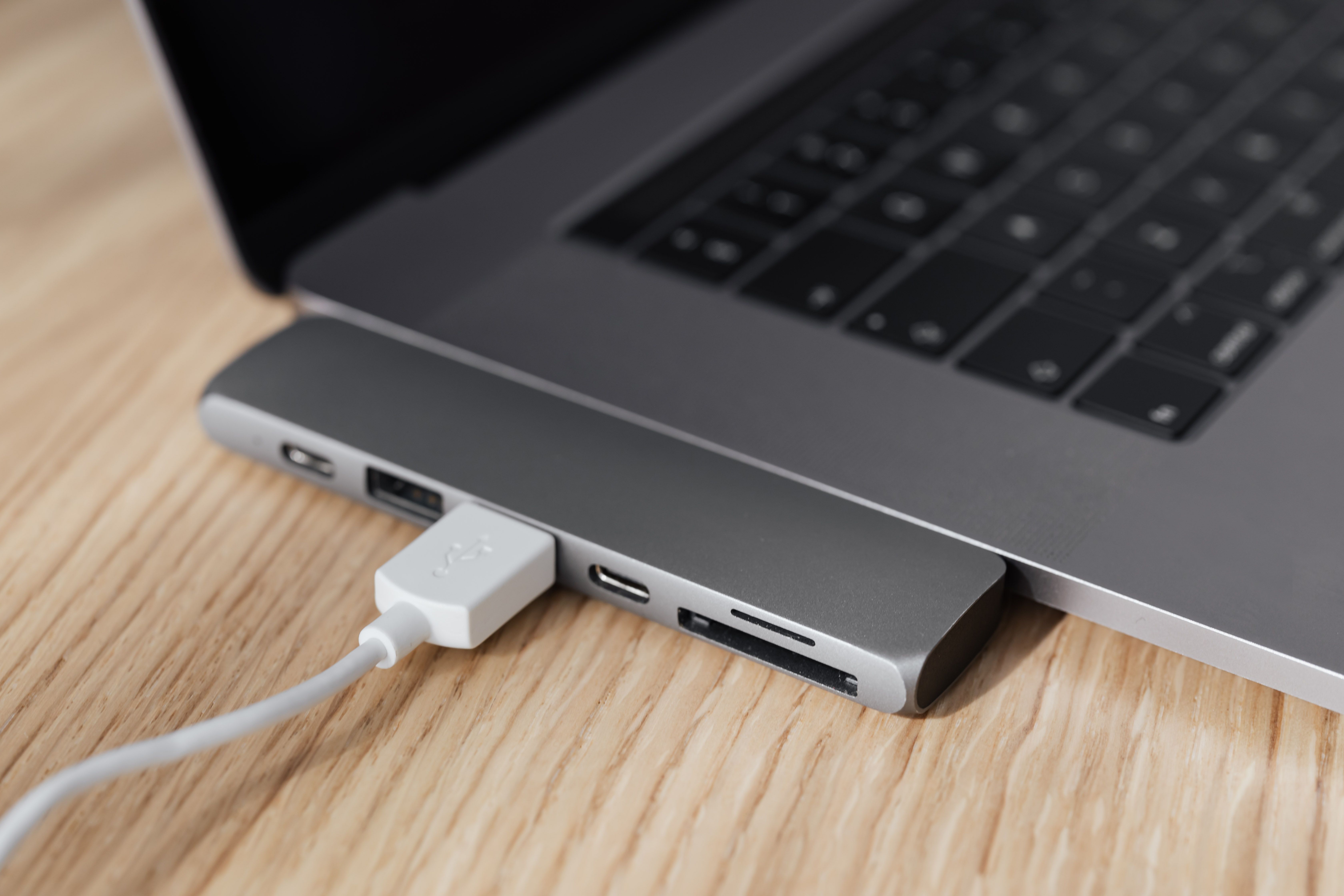
They both plug into the same USB-C or Thunderbolt port on your laptop. They both look like small metal or plastic bricks with a row of ports along one edge. And in a store listing, "USB-C hub" and "docking station" can read like two names for the same thing. They aren't.
USB-C Hub vs Docking Station at a Glance
The short version: a hub is a portable add-on that borrows power from your laptop, while a dock is a desk-anchored device with its own power brick and a much higher ceiling for monitors and peripherals.
| USB-C hub | Docking station | |
|---|---|---|
| Price range | Roughly $25–$80 | Roughly $100–$350+ |
| Typical ports | 3–8: USB-A, HDMI, SD/microSD, sometimes Ethernet | 8–15+: multiple USB-A/C, dual HDMI/DisplayPort, Ethernet, audio, card readers |
| Laptop charging | Passes through your existing charger’s wattage, usually with some loss | Has its own power supply; charges the laptop directly and more consistently |
| Monitor support | Usually one external display | Two or more, via Thunderbolt daisy-chaining or multiple video outputs |
| Portability | Small enough for a laptop bag | Stays on one desk; not meant to travel daily |
| Best for | Hybrid work, travel, one monitor | Fixed desk, multi-monitor, heavy peripheral load |
What Is a USB-C Hub?
A USB-C hub is a small adapter that plugs into a single USB-C or Thunderbolt port on your laptop and splits it into several ports at once: usually a mix of USB-A, HDMI, an SD or microSD card slot, and sometimes a spare USB-C passthrough port. Most are bus-powered, meaning they don't have their own power supply — they draw whatever power and bandwidth your laptop's single port provides and share it across every connected device.
That makes a hub cheap, light, and easy to toss in a bag, but it also means it's limited by what one laptop port can deliver. If the hub supports charging passthrough, your laptop's own charger plugs into the hub instead of directly into the laptop, and the hub relays that power while the data and video pass through the same cable.
What Is a Docking Station?
A docking station does the same basic job — turning one port into many — but it's built around a different assumption: that it will sit on one desk, stay plugged into its own wall outlet, and act as a permanent extension of that workspace. Docks ship with their own power brick, which is what lets them charge a laptop at full speed and drive two or more monitors without starving any single device of bandwidth.
Docks generally come in two flavors. Thunderbolt 4 docks use the combined bandwidth and display protocols of Thunderbolt to drive multiple 4K monitors and daisy-chain additional Thunderbolt devices off a single cable — Thunderbolt 4 guarantees 40Gbps of bandwidth and support for two 4K displays or one 8K display from every compliant port, according to Intel's Thunderbolt 4 specification. USB-C docks (without Thunderbolt certification) are usually cheaper and still cover dual monitors on most modern laptops, but they rely on your laptop's DisplayPort Alt Mode implementation rather than Thunderbolt's guaranteed bandwidth, so monitor support varies more by laptop model.
Key Differences Between a Hub and a Dock
Price
Basic USB-C hubs with four to six ports typically run $25–$50; hubs that add Ethernet or faster card readers push toward $80. Docking stations start around $100 for USB-C models and climb past $300 for full-featured Thunderbolt 4 docks with 15 or more ports. The price gap reflects the extra power supply, the additional video-output hardware, and the engineering needed to split real bandwidth across more simultaneous devices.
Ports and Expandability
A hub's port count is a practical ceiling, not just a spec: a 4-in-1 or 6-in-1 hub is meant to cover a laptop's immediate gaps — one video output, a couple of USB-A ports for a mouse or flash drive, maybe a card slot for offloading photos (see our guide to choosing a microSD card if you're shopping for the card to go with that reader). A dock is built to replace an entire desk's worth of cabling at once: dual video outputs, four to eight USB ports split between USB-A and USB-C, Gigabit Ethernet, a 3.5mm audio jack, and often a full-size SD slot, all living behind one cable that connects and disconnects in a single motion.
Power Delivery and Laptop Charging
This is where the passthrough-vs-dedicated-power distinction matters most in daily use. A hub with charging passthrough still relies on your laptop's own charger; the hub just relays that power alongside data and video, and some wattage is typically lost in the process, so a 65W charger might only deliver 60W to the laptop through a hub. A dock supplies power itself, usually at a fixed wattage (65W, 90W, or 100W+ depending on the model), and that power is dedicated to charging rather than shared with whatever video and data traffic is also running through the cable. If your laptop needs close to its full rated wattage to charge while in heavy use, a dock's dedicated power delivery is the more reliable option.
Multi-Monitor Support
Most laptops' USB-C ports support DisplayPort Alt Mode, which by default drives a single external display per port. A basic hub, even one with an HDMI output, is usually limited to that one display. Docking stations get past this limit in one of two ways: Thunderbolt docks use Thunderbolt's native multi-monitor support (often via Multi-Stream Transport, or MST, which carries multiple independent video streams over one cable) to drive two external displays from a single connection, while some USB-C docks use DisplayLink technology — a chip and software driver that compresses video and sends it over USB rather than relying on the laptop's native video output — to add a second or third display even on laptops that don't natively support more than one.
Portability
A bus-powered hub weighs a few ounces and has no cables beyond the one built into it, so it travels well: into a bag, onto a coffee-shop table, back out again. A dock is the opposite by design — its own power brick, thicker cabling, and desk-anchored purpose mean it's meant to be set up once and left alone. Carrying a dock daily defeats the point of owning one.
Four Questions That Decide Which One You Need
Skip the spec sheet for a minute and answer these four questions. They'll point you to a hub or a dock faster than comparing port counts.
How many external monitors do you run?
One monitor: a hub with an HDMI or DisplayPort output is enough. Two or more: you need a dock, either Thunderbolt-based or DisplayLink-equipped, since a basic hub tops out at one external display on most laptops.
Does it need to keep your laptop charged all day?
If you're in video calls and heavy applications for eight hours straight, a dock's dedicated power delivery keeps the laptop topped up without the small wattage loss that passthrough hubs introduce. Light, intermittent use makes that loss mostly irrelevant.
How much peripheral gear do you connect?
A mouse, a flash drive, and an SD card reader fit comfortably on a hub. Add a keyboard, an external drive or two, a wired headset, and Gigabit Ethernet, and you'll run out of hub ports fast — that's a dock's job.
Do you move between locations, or stay at one desk?
Hybrid workers, students, and anyone who works from a laptop bag need something that travels, which rules out a dock. If your laptop lives on one desk from nine to five, a dock's lack of portability isn't a downside — it's the whole point.
Who Should Buy a USB-C Hub?
- You split your time between a desk, a couch, and coffee shops or co-working spaces
- You connect one external monitor at most, or none
- You want something cheap that fits in the same pocket as your charger
- You mainly need an SD card reader, an HDMI output, or an extra USB-A port for a mouse or drive
- You're not relying on the hub to keep your laptop charged during heavy, all-day use
Who Should Buy a Docking Station?
- You work from the same desk every day and want one cable to connect or disconnect everything
- You run two or more external monitors
- You connect a lot of peripherals at once: keyboard, external drives, Ethernet, audio, card readers
- You want your laptop to charge reliably at full speed while docked
- You're setting up a workspace for photo or video editing and need fast, steady connections for external storage — pairing a dock with a portable SSD for photographers is a common combination for offloading and backing up shoots
Common Problems and How to Fix Them
Most hub and dock issues trace back to a handful of causes. Here's what to check before assuming the hardware is faulty.
Monitor not detected. Confirm the monitor's input is actually set to the port you connected (many displays don't auto-switch inputs). Check that your laptop's video output supports DisplayPort Alt Mode on the port you're using — not every USB-C port on every laptop carries video, even if it looks identical to one that does. If you're using a DisplayLink dock, make sure the DisplayLink driver is installed and up to date; without it, the extra display simply won't appear.
Laptop not charging through the hub or dock. Check the device's rated charging wattage against what your laptop needs under load — a hub or dock rated for 60W won't fully charge a laptop that draws 90W while running demanding software, even if it charges fine at idle. Passthrough hubs are especially prone to this, since they're relaying your charger's wattage rather than supplying their own.
Second monitor not working. If you're on a MacBook Air or base MacBook Pro, revisit the single-external-display limitation described above — it's the most common cause on Apple laptops specifically. On other laptops, confirm the dock supports MST or DisplayLink for multiple displays rather than just multiple ports; some docks have two video outputs but can still only drive one display at a time because the laptop's own graphics output doesn't support splitting the signal.
Final Verdict
If you're picturing one extra monitor, a flash drive, and a laptop that spends half its life in a bag, a USB-C hub covers it for a fraction of the price. If you're picturing a fixed desk with two monitors, a keyboard, Ethernet, and a laptop you want charged and ready every morning with one cable, a docking station is built for exactly that. Match the device to where your laptop actually lives, not to the longest port list on the box.
Frequently asked questions
Do I need a hub or a dock for working from home?
Can a USB-C hub run two external monitors?
Will a hub or dock charge my laptop as well as the wall charger?
Is Thunderbolt 4 the same as USB4?
I only use one external monitor — is a hub enough?
Sources: Intel — Thunderbolt 4 Technology Overview, BenQ — USB4 vs Thunderbolt 4: Understanding the Differences, Macworld — How to Connect Multiple Monitors to MacBooks (M1–M5), Kensington — Connect Multiple Monitors to Your M4 MacBook Air.
How we write: we compare manufacturer specifications, independent lab measurements and verified owner reports. Prices are typical US street prices as of October 2026 and change often.